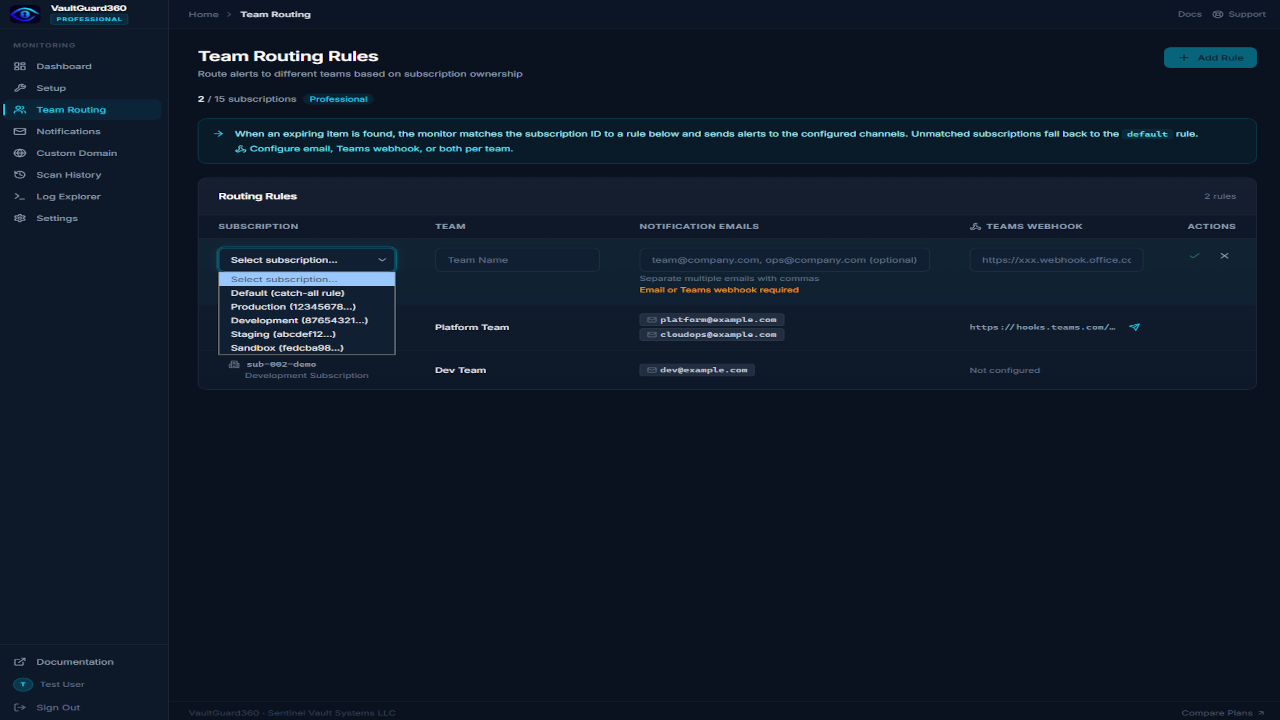
Team routing lets you direct alerts for different Azure subscriptions to different teams — each with their own email addresses and optional webhook overrides. This is essential in multi-team organizations where different groups own different subscriptions.
How Routing Works
When a scan runs, VaultGuard360 matches each subscription against your routing rules. The most specific matching rule wins:
- Exact subscription match — a rule with the subscription's exact ID
- Default/catch-all (
*) — a rule that matches any subscription not covered by a specific rule - No match — the global default notification email (from Dashboard > Settings) is used
Each routing rule specifies:
- Which subscription(s) it applies to
- A team name used for display and as the
teamNamefield in webhook payloads - One or more notification email addresses
- An optional Teams webhook URL override for this team
Creating a Routing Rule
- Navigate to Dashboard > Team Routing.
- Click Add Rule.
- Fill in the rule details:
- Subscription — select from the dropdown of subscriptions accessible to the managed identity, or type a subscription ID manually
- Team Name — a label for this team (e.g.,
Platform Team,Security Ops) - Notification Emails — one or more email addresses, comma-separated
- Teams Webhook URL (optional) — a per-team Teams channel webhook that overrides the global Teams webhook for this subscription
- Click Save Rule.
The new rule takes effect on the next scan.
Default (Catch-All) Rule
To set a fallback routing rule that applies to subscriptions not covered by any specific rule:
- Click Add Rule.
- For Subscription, select Default (all unmatched subscriptions) or enter
*. - Fill in the team name and notification emails.
- Click Save Rule.
If no default rule exists and a subscription does not match any rule, VaultGuard360 falls back to the global default notification email set under Dashboard > Settings.
Per-Route Webhook Overrides
Each routing rule can have its own Teams webhook URL. This lets you send alerts to different Teams channels per team without configuring separate webhook endpoints at the global level.
For example:
Platform Team→#platform-alertsTeams channelSecurity Team→#security-incidentsTeams channel- Catch-all →
#vault-monitoringTeams channel
To set a webhook override:
- Edit an existing routing rule (click the pencil icon).
- Enter the Teams webhook URL under Teams Webhook Override.
- Click Save Rule.
Note: Per-route webhook overrides currently support Teams webhook URLs. For Slack, PagerDuty, ServiceNow, or generic webhooks per team, use the
teamNamefield in the generic webhook payload to route at the receiving endpoint.
Editing and Deleting Rules
To edit a rule, click the pencil icon next to it in the Team Routing list. To delete a rule, click the trash icon and confirm.
Deleting a rule does not delete any notification history — it only removes the routing configuration. Subscriptions covered by the deleted rule will fall back to the catch-all rule or the global default.
Exporting Routing Configuration
Before upgrading from Trial to a paid tier (which requires a new Marketplace deployment), export your routing rules:
- Navigate to Dashboard > Team Routing.
- Click Export to download the current rules as JSON.
- After the new deployment is set up, use the exported file as a reference to re-enter your rules.
Troubleshooting
Alerts for a subscription going to the wrong address Check whether multiple routing rules match the subscription. Open the routing list and look for overlapping rules. Only one rule applies per subscription — the most specific exact-match rule wins.
New subscription not receiving alerts
A new subscription not covered by any routing rule falls back to the global default email. Add a specific rule for the new subscription, or ensure a catch-all (*) rule exists.
Teams webhook override not firing
Verify the webhook URL under the routing rule is a valid Teams webhook URL (starts with https://<tenant>.webhook.office.com/webhookb2/... or https://outlook.office.com/webhook/...). Test it directly with a curl POST request.
Team routing changes not reflected in notifications Routing changes take effect on the next scan. Click Run Scan Now on the dashboard to apply the new rules immediately.