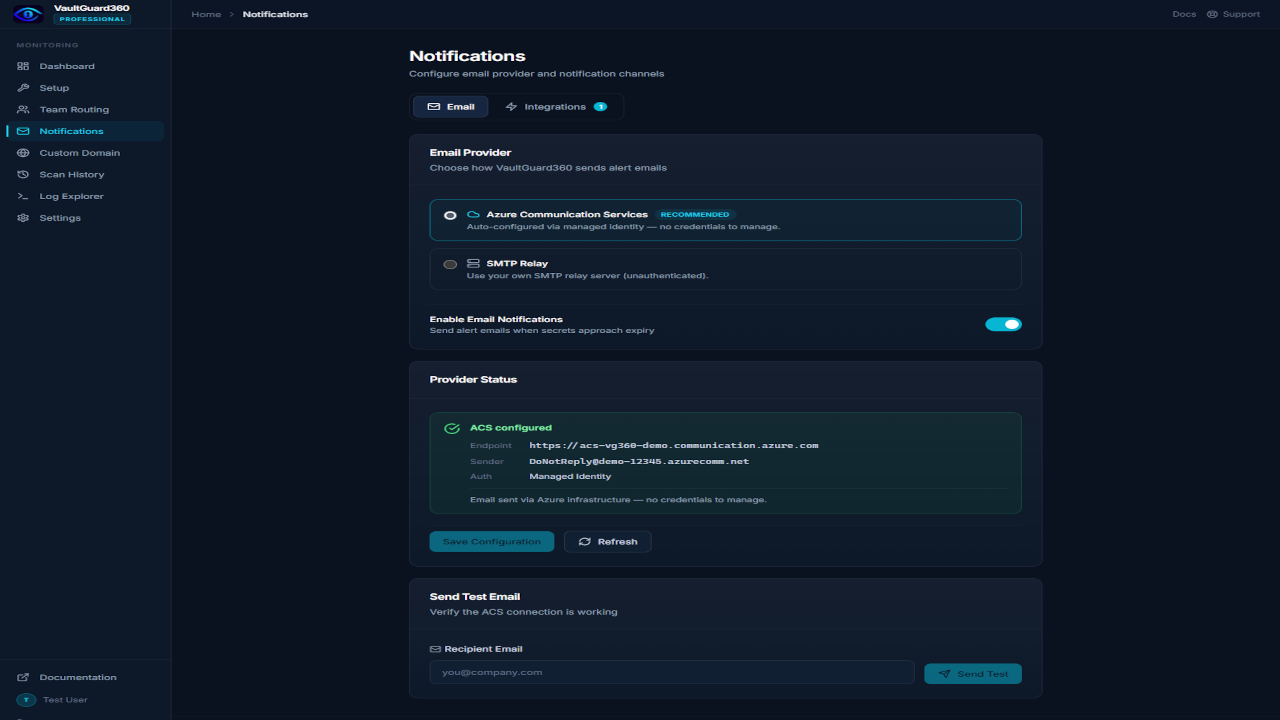
VaultGuard360 sends alert notifications via Azure Communication Services (ACS), which is configured automatically during Marketplace deployment. SMTP is available as an optional fallback.
Default Email Recipient
Every alert has a default recipient — the address that receives notifications when no team routing rule matches the subscription being scanned.
To set or change the default recipient:
- Navigate to Dashboard > Settings.
- Under Default Notification Email, enter an email address (or comma-separated list for multiple recipients).
- Click Save.
You can also target specific subscriptions to specific teams or addresses using routing rules. See Team Routing.
Email via Azure Communication Services (ACS)
ACS is the recommended email provider and is set up automatically during Marketplace deployment. No configuration is needed for basic email delivery.
How it works
The ARM template deploys an Azure Communication Services resource linked to an Azure-managed email domain and sets the ACS_CONNECTION_STRING app setting automatically. On the first scan, VaultGuard360 discovers the sender address and begins delivering alerts immediately.
The default sender address looks like:
DoNotReply@<guid>.azurecomm.net
To replace this with a branded address like alerts@alerts.contoso.com, see Custom Email Domain.
Verify ACS is working
- Navigate to Dashboard > Email Configuration.
- The current sender address is displayed under Active Sender.
- Enter a recipient in the Test Email field and click Send Test Email.
- If the test email arrives, ACS is working correctly.
SMTP Relay (Optional Fallback)
If you prefer to route alerts through your own mail infrastructure, you can configure an SMTP relay in addition to ACS. SMTP is used as a fallback only when ACS is unavailable.
Relay Mode vs. Authenticated Mode
| Setting | Relay Mode | Authenticated Mode |
|---|---|---|
| Authentication | None required | Username + password |
| Default port | 25 | 587 (STARTTLS) |
| TLS | Off by default | On by default |
| Typical use | Internal Exchange or SendGrid relay | Gmail, Office 365, SES |
Configure SMTP
- Navigate to Dashboard > Email Configuration.
- Click Configure SMTP Fallback.
- Fill in the SMTP server details:
- SMTP Host — e.g.,
smtp.office365.comorsmtp.gmail.com - Port — 587 for STARTTLS, 465 for SSL, 25 for relay
- From Address — the address that appears in the From field
- From Name — display name (default:
VaultGuard360 Alerts) - Require Authentication — enable for Gmail/O365, disable for relay
- Username / Password — required for authenticated mode
- SMTP Host — e.g.,
- Click Save SMTP Settings.
- Click Test SMTP to verify the connection.
Note: For Gmail, you must use an App Password rather than your regular account password. Generate one at myaccount.google.com/apppasswords.
Enable and Disable Notifications
Notifications are enabled by default. To temporarily suppress all alerts:
- Navigate to Dashboard > Settings.
- Toggle Notifications Enabled off.
- Click Save.
Scans continue to run and the dashboard still shows expiring items — only outbound notifications (email, Teams, webhooks) are suppressed.
Troubleshooting
Test email not arriving
Check the spam folder first. If ACS email is not arriving, verify the ACS_CONNECTION_STRING app setting is set in the Azure portal under the Function App's Application settings. If it is missing, see the Troubleshooting guide for steps to retrieve and set it manually.
SMTP authentication error Common causes: wrong port (try 587 with TLS), Gmail requiring an App Password instead of the account password, or a corporate firewall blocking outbound SMTP. Check Application Insights for the specific error message.
Notifications sent to wrong address If the default notification email is set correctly but alerts go elsewhere, a team routing rule may be overriding it. Check Dashboard > Team Routing for rules that match the affected subscription.