VaultGuard360 uses a user-assigned managed identity named id-vaultguard360 to authenticate to Azure. You need to grant this identity two RBAC roles on each subscription you want to monitor.
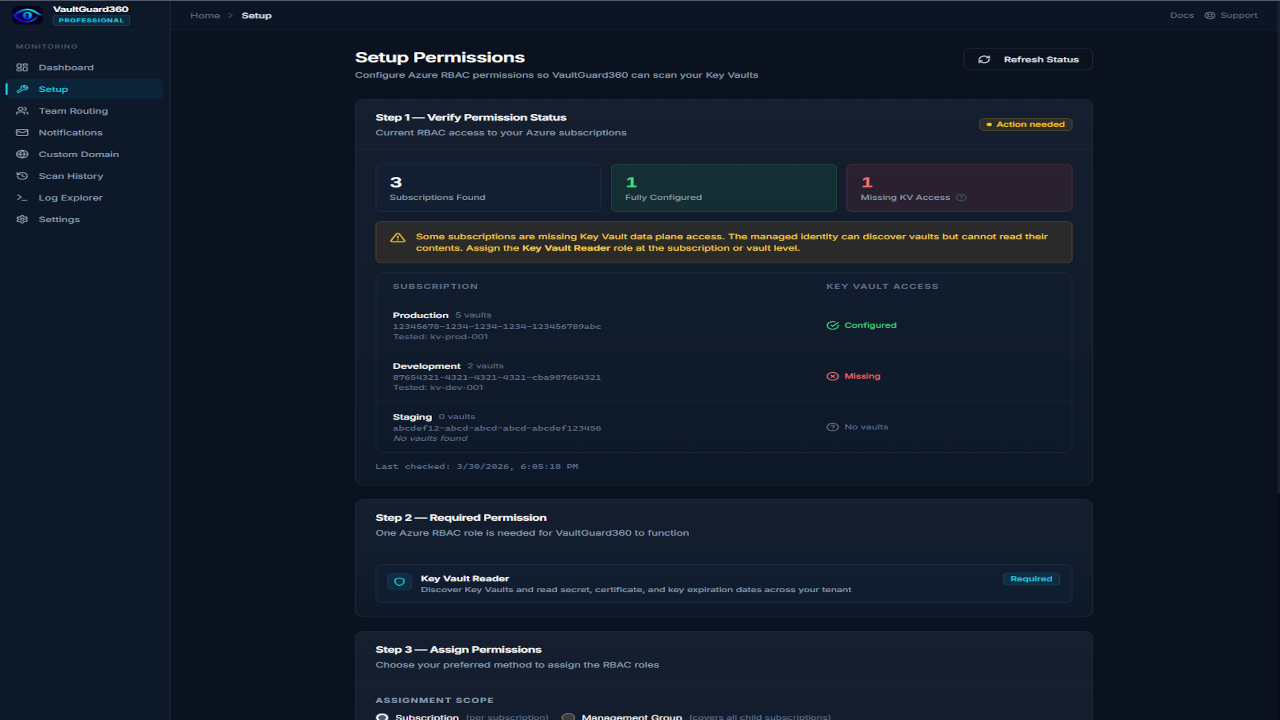
Required Roles
| Role | Purpose |
|---|---|
| Reader | Lists subscriptions, resource groups, and Key Vault resources |
| Key Vault Reader | Lists secrets, keys, and certificates and reads their expiry metadata |
These are the only two roles needed. VaultGuard360 reads metadata (names, expiry dates) only — it never reads secret values. Do not assign Key Vault Secrets User, Certificate User, or Crypto User.
Option 1: Assign via the Dashboard (Recommended)
The easiest method is through the VaultGuard360 Setup page:
- Open the VaultGuard360 dashboard and navigate to Setup.
- The page lists all subscriptions visible to Azure and shows which ones are missing the required roles.
- For each subscription, click Assign Permissions. This opens the Azure portal role assignment blade pre-populated with the correct values.
- Complete the role assignment in the Azure portal, then return to the Setup page and click Refresh to confirm.
- Repeat for each subscription you want to monitor.
After all roles are assigned, the Setup page shows a green checkmark for each subscription, and VaultGuard360 will discover Key Vaults in those subscriptions on the next scan.
Option 2: Assign via Azure CLI
Use this method for scripted or bulk assignments.
Get the managed identity's principal ID
PRINCIPAL_ID=$(az identity show \
  --name id-vaultguard360 \
  --resource-group <your-resource-group> \
  --query principalId -o tsv)
Assign roles at subscription scope
Repeat for each subscription you want monitored:
# Assign Reader
az role assignment create \
  --assignee-object-id $PRINCIPAL_ID \
  --assignee-principal-type ServicePrincipal \
  --role "Reader" \
  --scope /subscriptions/<subscription-id>

# Assign Key Vault Reader
az role assignment create \
  --assignee-object-id $PRINCIPAL_ID \
  --assignee-principal-type ServicePrincipal \
  --role "Key Vault Reader" \
  --scope /subscriptions/<subscription-id>
Note: Role assignments can take 5–10 minutes to propagate in Azure. If the permission status check still shows missing roles after assignment, wait a few minutes and try again.
Subscription Scope vs. Vault Scope
You can assign roles at either subscription scope or individual vault scope.
| Scope | Pros | Cons |
|---|---|---|
| Subscription (recommended) | Covers all current and future vaults in the subscription automatically | Broader permission footprint |
| Individual vault | Least-privilege if you only want to monitor specific vaults | Must be updated every time a new vault is added |
For most organizations, subscription scope is the right choice. VaultGuard360 only reads metadata — assigning Key Vault Reader at subscription scope poses minimal security risk.
Enabling RBAC Authorization on Key Vaults
Each Key Vault must use RBAC authorization mode (not vault access policies) for the Key Vault Reader role to take effect.
Check and enable RBAC authorization:
# Check current mode
az keyvault show --name <vault-name> \
  --query properties.enableRbacAuthorization

# Enable RBAC authorization (if not already enabled)
az keyvault update \
  --name <vault-name> \
  --resource-group <vault-resource-group> \
  --enable-rbac-authorization true
Warning: Switching a vault from access policies to RBAC authorization removes all existing access policy entries. Ensure other applications that access this vault using access policies are migrated to RBAC assignments before making this change.
Verify Permissions
After assigning roles, confirm VaultGuard360 can see your subscriptions and vaults:
curl https://<your-func>.azurewebsites.net/api/permission-status
The response lists each subscription with hasReader and hasKeyVaultAccess booleans:
{
  "subscriptions": [
    {
      "subscriptionId": "xxxxxxxx-xxxx-xxxx-xxxx-xxxxxxxxxxxx",
      "subscriptionName": "Production",
      "hasReader": true,
      "hasKeyVaultAccess": true,
      "vaultCount": 12
    }
  ],
  "totalAccessible": 1
}
Troubleshooting
hasReader: false after assigning Reader
Role assignments take 5–10 minutes to propagate. If the issue persists after 15 minutes, verify the PRINCIPAL_ID you used matches the principalId (not the clientId) of id-vaultguard360.
hasKeyVaultAccess: false after assigning Key Vault Reader
Verify RBAC authorization is enabled on the vault: az keyvault show --name <vault> --query properties.enableRbacAuthorization must return true. Vault access policies and RBAC are mutually exclusive — if the vault uses access policies, the Key Vault Reader RBAC role has no effect.
"DefaultAzureCredential failed" in logs
The AZURE_CLIENT_ID app setting may be missing or incorrect. Verify it matches the clientId (not principalId) of id-vaultguard360:
az identity show --name id-vaultguard360 \
  --resource-group <rg> --query clientId -o tsv
Then compare against:
az functionapp config appsettings list \
  --name <func> --resource-group <rg> \
  --query "[?name=='AZURE_CLIENT_ID'].value" -o tsv