VaultGuard360 continuously monitors secrets, certificates, and keys across all accessible Azure Key Vaults and presents the results in a unified scan history view.
How Scans Work
Timer-Triggered Scanning
Scans run automatically on an NCRONTAB schedule configured in the Azure Function App. The default schedule runs scans once per day. The Function App timer trigger fires at the configured interval, and the scanner enumerates every accessible Key Vault across all subscriptions where the managed identity holds the Key Vault Reader role.
The scan engine uses only metadata listing methods — it reads item names and expiration dates but never accesses secret values, certificate private keys, or key material.
Manual Scans
You can trigger an immediate scan at any time using the Run Scan Now button on the dashboard, or by calling the API directly:
curl -X POST https://<function-app>.azurewebsites.net/api/trigger \
  -H "Cookie: <your-session-cookie>"
Scan Timeout
The Function App has a 10-minute execution timeout. Very large tenants with 100+ Key Vaults may approach this limit. If scans are timing out, consider using team routing to focus monitoring on specific subscriptions rather than scanning all subscriptions in a single pass.
Severity Levels
Each expiring item is assigned a severity level based on how many days remain until expiration. You can customize the day thresholds in Settings → Alert Thresholds.
| Severity | Default Threshold | Meaning |
|---|---|---|
| Warning | 30 days | Item expires within the warning window |
| Severe | 14 days | Item expires within the severe window |
| Critical | 5 days | Item expires within the critical window |
| Expired | 0 days | Item has already expired |
Items are color-coded throughout the dashboard to reflect their current severity. Notifications are sent when items cross a threshold, according to your configured reminder mode.
Item Counts and Tier Limits
The scanner applies deterministic sorting before enforcing tier limits to ensure consistent, predictable results. Items are sorted by days remaining (most urgent first) so that the most critical expiring items always appear within your limit.
| Tier | Subscription Limit | Item Limit |
|---|---|---|
| Trial | 15 subscriptions | 200 items |
| Professional | 30 subscriptions | 2,000 items |
| Enterprise | Unlimited | Unlimited |
Subscriptions are sorted by subscription ID for deterministic ordering before truncation to the subscription limit. Items within each subscription are sorted by days remaining before truncation to the item limit.
Note: If you are approaching your item limit, upgrade to the next tier to ensure all expiring items are tracked. Items beyond the limit are not scanned or reported.
Scan History
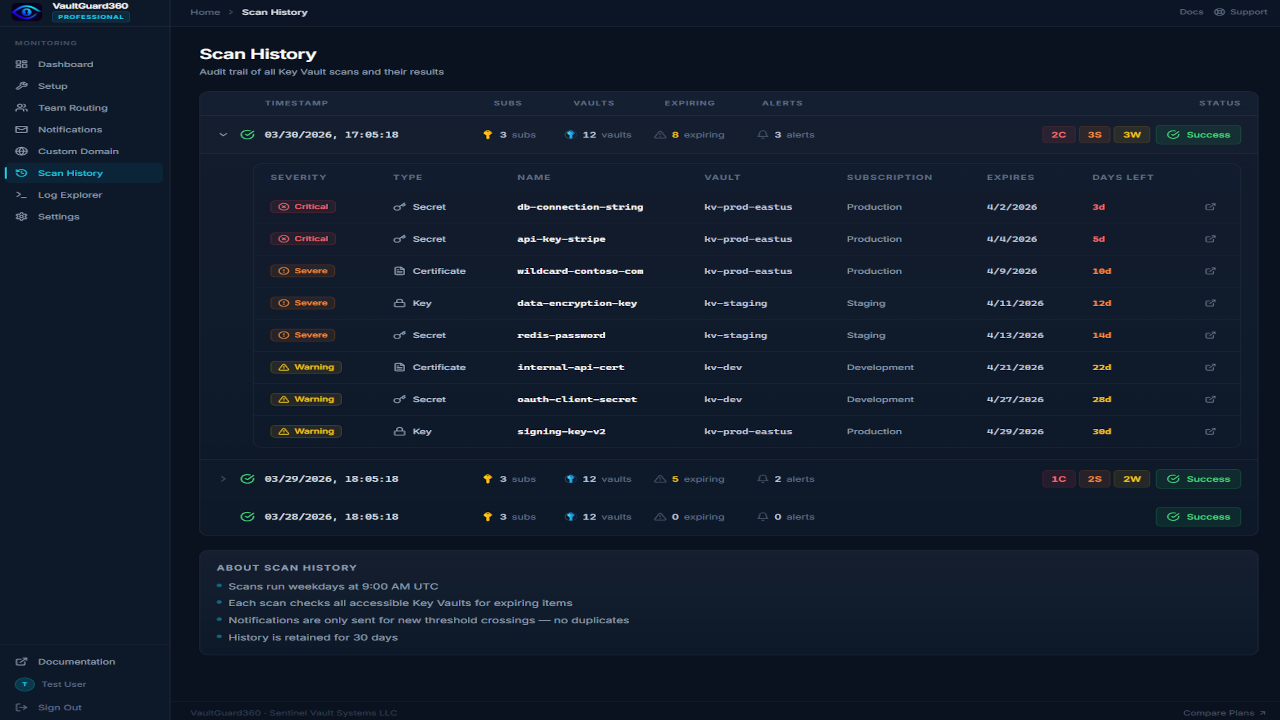
The Scan History view shows a log of recent scans including:
- Scan timestamp
- Number of subscriptions scanned
- Number of Key Vaults found
- Total item count
- Items by severity (warning, severe, critical, expired)
- Scan duration
Scan history is stored in Azure Table Storage within your managed resource group and retained for the lifetime of the deployment. It is not included in the configuration export and cannot be migrated between deployments.
Certificate Deduplication
When VaultGuard360 scans a Key Vault, certificates may appear with associated private keys stored as secrets. To avoid double-counting, the scanner applies deduplication logic:
- The certificate entry (with expiry date from the certificate metadata) is the canonical record.
- Companion secret entries that correspond to a certificate's private key are suppressed from results and counts.
This ensures each certificate counts as one item against your tier limit, not two. The deduplication happens automatically — no configuration is required.
Expiring Items View
The Expiring Items view (accessible via the dashboard) shows all currently expiring items in real time, fetched from the most recent scan. Each item displays:
- Item name
- Key Vault name
- Subscription name
- Item type (secret, certificate, or key)
- Expiration date
- Days remaining
- Severity badge
Use the expiring items view to quickly identify which items need attention, then navigate to the relevant Key Vault in the Azure portal to rotate or renew them.