Alert thresholds determine when VaultGuard360 classifies a Key Vault item as expiring and sends a notification. All three thresholds and their reminder frequency are configurable for all tiers.
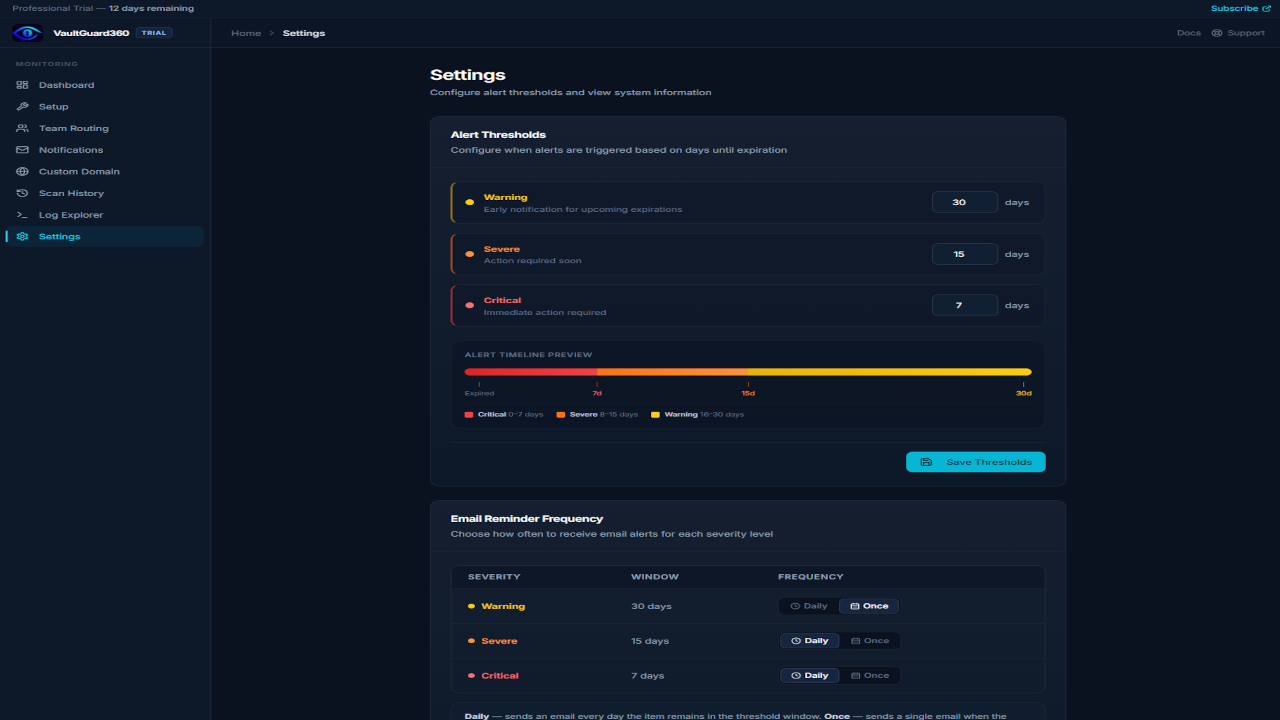
Default Thresholds
| Severity | Default | Description |
|---|---|---|
| Warning | 30 days | Item expires within 30 days — plan for renewal |
| Severe | 14 days | Item expires within 14 days — initiate renewal now |
| Critical | 7 days | Item expires within 7 days — renewal is urgent |
Items are classified at the most severe level that applies. An item expiring in 5 days is Critical, not Warning.
Changing Thresholds
- Open the VaultGuard360 dashboard and navigate to Settings.
- Under Alert Thresholds, update the values for Warning, Severe, and Critical days.
- Click Save Thresholds.
Changes take effect on the next scan (scheduled or manual). The new thresholds also determine which items appear in the Expiring Items list immediately after saving.
Note: The Warning threshold must be greater than Severe, and Severe must be greater than Critical. The dashboard enforces these constraints and will show a validation error if the values conflict.
Threshold Seeding on First Scan
The initial Warning threshold value comes from the WARNING_THRESHOLD_DAYS setting you entered in the Marketplace wizard (default: 30). On the first scan, VaultGuard360 seeds all three thresholds from this value using proportional scaling:
- Severe = Warning / 2
- Critical = Warning / 4 (minimum 3 days)
After the first scan, thresholds are stored in Table Storage and the wizard value is no longer used. You can update them freely via the Settings page.
Reminder Mode
Reminder mode controls how often VaultGuard360 re-sends notifications for items that remain in a threshold window across multiple scans.
| Mode | Behavior |
|---|---|
| Daily (default) | A notification is sent every day the item remains within the threshold window |
| Once | A notification is sent only when the threshold is first crossed. No further notifications until the item is renewed (which resets the tracking). |
Reminder mode is configured independently for each threshold level. For example, you might set Warning to once (to avoid alert fatigue for items with a 30-day lead time) while keeping Severe and Critical on daily (so urgent items get daily reminders).
Changing Reminder Mode
- Navigate to Dashboard > Settings.
- Under Reminder Frequency, choose Daily or Once for each threshold level.
- Click Save.
How Notifications Are Tracked
VaultGuard360 uses two separate tracking tables in Azure Table Storage:
- Email/Teams notifications — tracked in
KeyVaultExpirationTracking. Prevents duplicate email or Teams messages based on reminder mode. - Webhook notifications — tracked in
WebhookNotificationTracking. Webhooks always fire once per item per threshold regardless of reminder mode. If an item is renewed and re-enters a threshold window, the webhook fires again.
Renewing a Key Vault item resets its tracking record, so a fresh notification is sent when it next enters a threshold window.
Troubleshooting
Not receiving notifications for items past a threshold Check that a default notification email is set under Dashboard > Settings or that a team routing rule covers the affected subscription. Also verify the managed identity has the required RBAC roles — if scanning fails, no notifications are sent.
Receiving too many notifications Switch Warning reminder mode to Once under Dashboard > Settings > Reminder Frequency. This sends a single notification when the threshold is first crossed rather than daily reminders.
Threshold changes not taking effect Threshold updates apply on the next scan. Trigger an immediate scan with Run Scan Now on the main dashboard to apply changes right away.