In addition to email, VaultGuard360 can deliver alerts to Microsoft Teams, Slack, PagerDuty, ServiceNow, and any custom HTTPS endpoint. All integrations are configured under Dashboard > Notification Integrations.
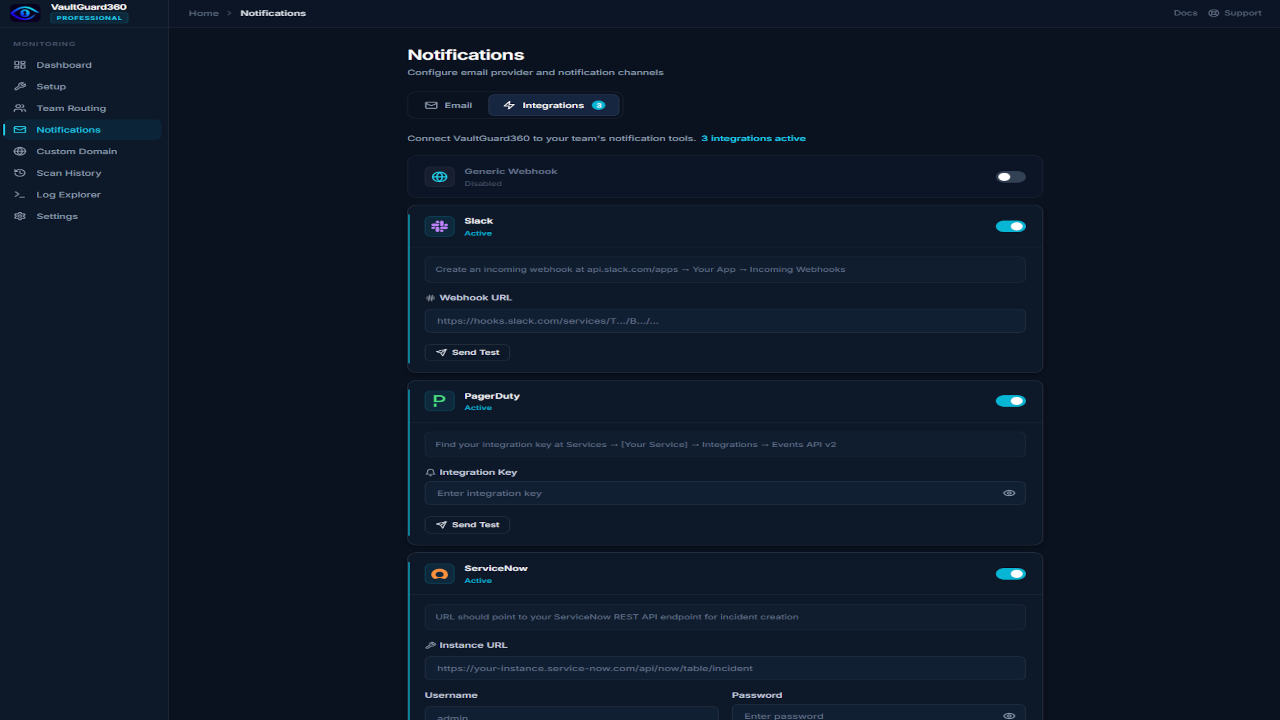
Note: Webhook integrations are available on all tiers (Trial, Professional, and Enterprise).
Microsoft Teams
VaultGuard360 sends alerts to Teams channels via an Incoming Webhook connector.
Set up the Teams webhook
- In Microsoft Teams, open the channel where you want to receive alerts.
- Click ... (More options) next to the channel name, then Connectors.
- Find Incoming Webhook and click Configure.
- Give it a name (e.g.,
VaultGuard360) and optionally upload an icon. - Click Create and copy the webhook URL.
Configure in VaultGuard360
- Navigate to Dashboard > Notification Integrations.
- Under Microsoft Teams, paste the webhook URL.
- Click Save, then Send Test Message to verify.
Valid Teams webhook URL formats:
https://<tenant>.webhook.office.com/webhookb2/...https://outlook.office.com/webhook/...
Note: Teams also supports a per-team webhook URL in Team Routing. The integration here sets the global fallback Teams channel.
Slack
VaultGuard360 sends alerts to Slack channels via an Incoming Webhook app.
Create a Slack Incoming Webhook
- Go to api.slack.com/apps and click Create New App > From scratch.
- Name the app (e.g.,
VaultGuard360) and select your workspace. - In the left sidebar, click Incoming Webhooks and toggle it on.
- Click Add New Webhook to Workspace, select the channel, and click Allow.
- Copy the webhook URL — it starts with
https://hooks.slack.com/services/....
Configure in VaultGuard360
- Navigate to Dashboard > Notification Integrations.
- Under Slack, paste the webhook URL.
- Click Save, then Send Test Message.
Slack alert messages include the item name, vault, subscription, severity, and days remaining. Up to 10 items are shown per alert to keep messages readable.
PagerDuty
VaultGuard360 creates PagerDuty incidents for critical and severe Key Vault expirations using the Events API v2.
Get a PagerDuty Integration Key
- In PagerDuty, navigate to Services > Service Directory.
- Select the service that should receive Key Vault alerts (or create a new one).
- Go to the Integrations tab and click Add an integration.
- Select Events API v2 and click Add.
- Copy the Integration Key (also called Routing Key).
Configure in VaultGuard360
- Navigate to Dashboard > Notification Integrations.
- Under PagerDuty, enter the Integration Key.
- Click Save, then Send Test Alert to verify.
PagerDuty incidents include the item name, vault, subscription, severity, and expiry date. Up to 20 items are grouped per alert.
ServiceNow
VaultGuard360 creates ServiceNow incidents via the Table API.
Prepare ServiceNow
- Ensure the integration user account has
itilorweb_service_access_onlyrole. - Note your ServiceNow instance URL (e.g.,
https://mycompany.service-now.com). - Create or identify the credentials (username and password) for the API user.
Configure in VaultGuard360
- Navigate to Dashboard > Notification Integrations.
- Under ServiceNow, enter:
- Instance URL — your ServiceNow base URL
- Username — API user account
- Password — API user password
- Click Save, then Create Test Incident to verify the connection.
Note: ServiceNow credentials are stored in Azure Table Storage, which is protected by Azure Managed App deny assignments that prevent direct data-plane access by the customer or publisher. All storage data is encrypted at rest with AES-256.
ServiceNow incidents include the item name, vault, subscription, severity, and expiry date. Up to 20 items are grouped per incident.
Generic Webhook (HMAC-signed)
Send JSON payloads to any HTTPS endpoint — your own API, Zapier, Make, Azure Logic Apps, or any other automation platform.
Configure in VaultGuard360
- Navigate to Dashboard > Notification Integrations.
- Under Generic Webhook, enter:
- URL — your HTTPS endpoint (must be HTTPS, max 2048 characters)
- Secret — optional shared secret for HMAC-SHA256 signature verification (max 256 characters)
- Click Save, then Send Test Payload.
Request format
Webhook payloads are sent as POST requests with Content-Type: application/json. The payload includes:
{
  "event": "threshold_crossed",
  "severity": "critical",
  "items": [
    {
      "name": "my-certificate",
      "vault": "kv-production",
      "subscription": "Production",
      "subscriptionId": "xxxxxxxx-...",
      "type": "Certificate",
      "expiryDate": "2026-04-15T00:00:00Z",
      "daysRemaining": 5,
      "teamName": "Platform Team"
    }
  ]
}
The teamName field matches the routing rule that matched the subscription, so you can route to different handlers at the receiving endpoint.
Verifying the signature
If a Secret is configured, every request includes an X-VaultGuard360-Signature header containing the hex-encoded HMAC-SHA256 of the raw JSON body, signed with your secret:
import hmac, hashlib

def verify_signature(body: bytes, secret: str, header: str) -> bool:
    expected = hmac.new(secret.encode(), body, hashlib.sha256).hexdigest()
    return hmac.compare_digest(expected, header)
Delivery behavior
Webhooks fire once per item per threshold level and do not repeat (unlike email, which follows the reminder mode setting). If an item is renewed and re-enters a threshold window, the webhook fires again.
Troubleshooting
Teams messages not arriving Verify the webhook URL format. Test it directly:
curl -H "Content-Type: application/json" \
  -d '{"text":"VaultGuard360 test"}' "<your-webhook-url>"
A 1 response means success. invalid_webhook means the URL is incorrect or the connector has been removed.
Slack webhook returning 404 The webhook URL has been revoked. Regenerate it in the Slack app settings and update the URL in VaultGuard360.
Generic webhook timeout
The default webhook timeout is 10 seconds. If your endpoint is slow, increase it by setting the WEBHOOK_TIMEOUT app setting on the Function App (e.g., WEBHOOK_TIMEOUT=30).
Webhook not firing despite items past threshold
Check WebhookNotificationTracking in Table Storage — if an entry already exists for the item/threshold combination, the webhook has already fired for this cycle. It will fire again only when the item is renewed or a new threshold window is entered.