VaultGuard360 maintains a comprehensive audit log of all scans and configuration changes. Audit logs are stored in Azure Table Storage within your managed resource group and in your Log Analytics workspace, with 365-day retention across all tiers.
What Gets Logged
Scan Events
Every scan execution produces an audit log entry containing:
- Scan start and end timestamps
- Correlation ID for tracing across log sources
- Number of subscriptions scanned
- Number of Key Vaults discovered
- Total items scanned
- Items found at each severity level (warning, severe, critical, expired)
- Scan outcome (success, partial failure, timeout)
Configuration Changes
All configuration changes made through the dashboard or API are logged, including:
- Alert threshold updates (warning, severe, critical day values)
- Routing rule additions, modifications, and deletions
- Email configuration changes (provider, SMTP settings)
- Webhook channel configuration changes
- Reminder mode changes
- Settings updates (default notification email, per-threshold enable/disable)
Note: The audit log records that a configuration change occurred and what was changed. Webhook URLs, SMTP credentials, and other secrets are never written to the audit log.
Notification Events
Notification delivery attempts are logged, including:
- Notification type (email, webhook, Teams)
- Delivery timestamp
- Target (email address or webhook channel type — not the URL itself)
- Delivery outcome (success or failure)
- Error details on failure
Retention
Audit logs are retained for 365 days across all tiers — Trial, Professional, and Enterprise.
| Log Store | Retention | Access |
|---|---|---|
Azure Table Storage (AuditLog table) | Deployment lifetime | Direct Table Storage query |
| Log Analytics workspace | 365 days | KQL queries via Log Explorer or Azure portal |
| Application Insights | 365 days | KQL queries via Log Explorer or Azure portal |
The 365-day retention period meets the audit log retention requirements of SOC 2, ISO 27001, and HIPAA.
Compliance Use Cases
SOC 2 Evidence
Audit logs support multiple SOC 2 Trust Services Criteria:
| Criterion | How Audit Logs Help |
|---|---|
| CC7.2 (Monitoring of System Operations) | Scan execution records demonstrate continuous monitoring |
| CC7.3 (Evaluation and Communicating Security Events) | Notification delivery logs demonstrate alert routing |
| CC6.1 (Logical Access) | Configuration change logs show who changed access settings and when |
Use the Log Explorer's CSV export to produce compliance evidence packages for auditors.
ISO 27001
Audit logs support A.12.4.1 (Event Logging) by maintaining records of:
- System operations (scans)
- Privileged actions (configuration changes)
- Access events (authentication through Application Insights HTTP logs)
GDPR Article 30 (Records of Processing)
Audit logs provide the records of processing activities required under GDPR Article 30, including:
- What data was accessed (Key Vault item metadata)
- When it was accessed (scan timestamps)
- The purpose (expiration monitoring)
Querying Audit Logs
From the Log Explorer
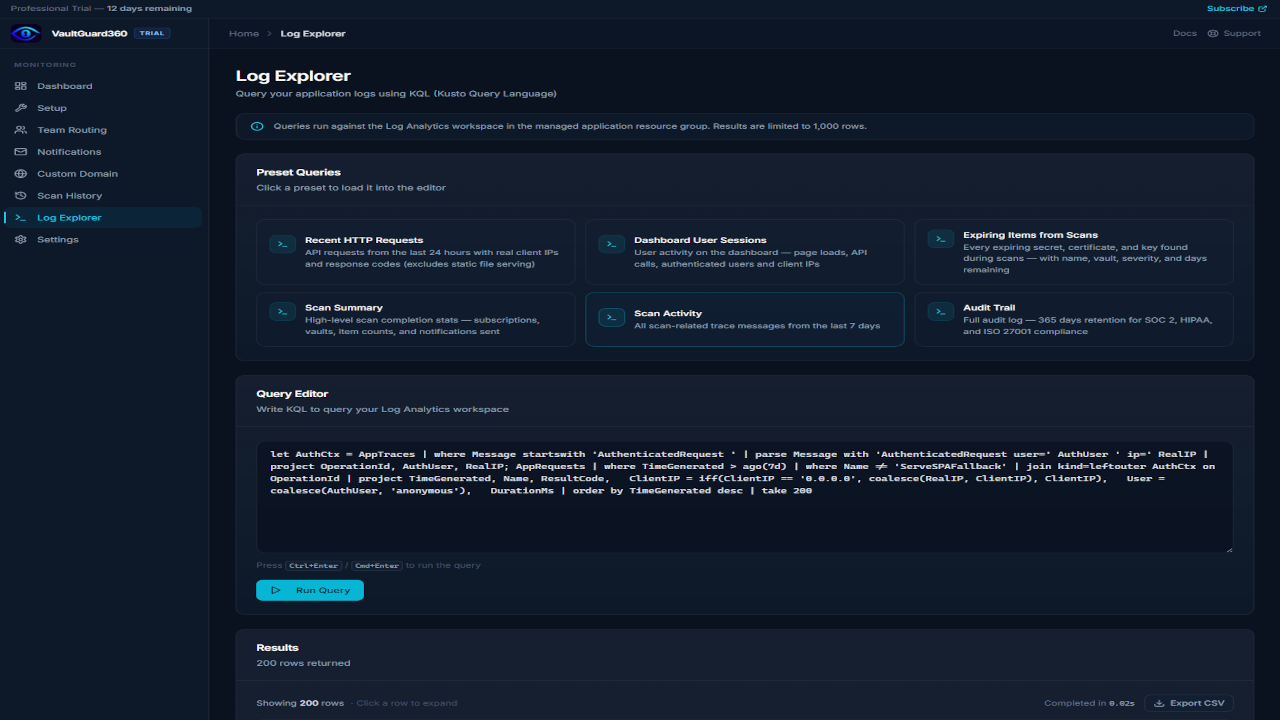
The dashboard's Log Explorer page provides a KQL query interface against your Log Analytics workspace. See the Log Explorer documentation for sample queries and export instructions.
From the Azure Portal
Navigate to your Log Analytics workspace in the Azure portal and run KQL queries directly:
// All scan events in the last 30 days
AppTraces
| where TimeGenerated > ago(30d)
| where Message contains "scan"
| project TimeGenerated, Message, Properties
| order by TimeGenerated desc
API Access
The /api/scans endpoint returns recent scan history in JSON format:
curl https://<function-app>.azurewebsites.net/api/scans \
  -H "Cookie: <your-session-cookie>"
Audit Log Security
Audit logs are stored in Azure Table Storage within your managed resource group. Access controls:
- Read access: Any user authenticated to the dashboard can view audit logs via the dashboard and Log Explorer.
- Write access: Only the Function App's managed identity writes to the audit log table. No user or external party can modify audit log entries.
- Publisher access: The publisher (Sentinel Vault Systems) has zero access to your managed resource group and cannot view, query, or modify your audit logs.