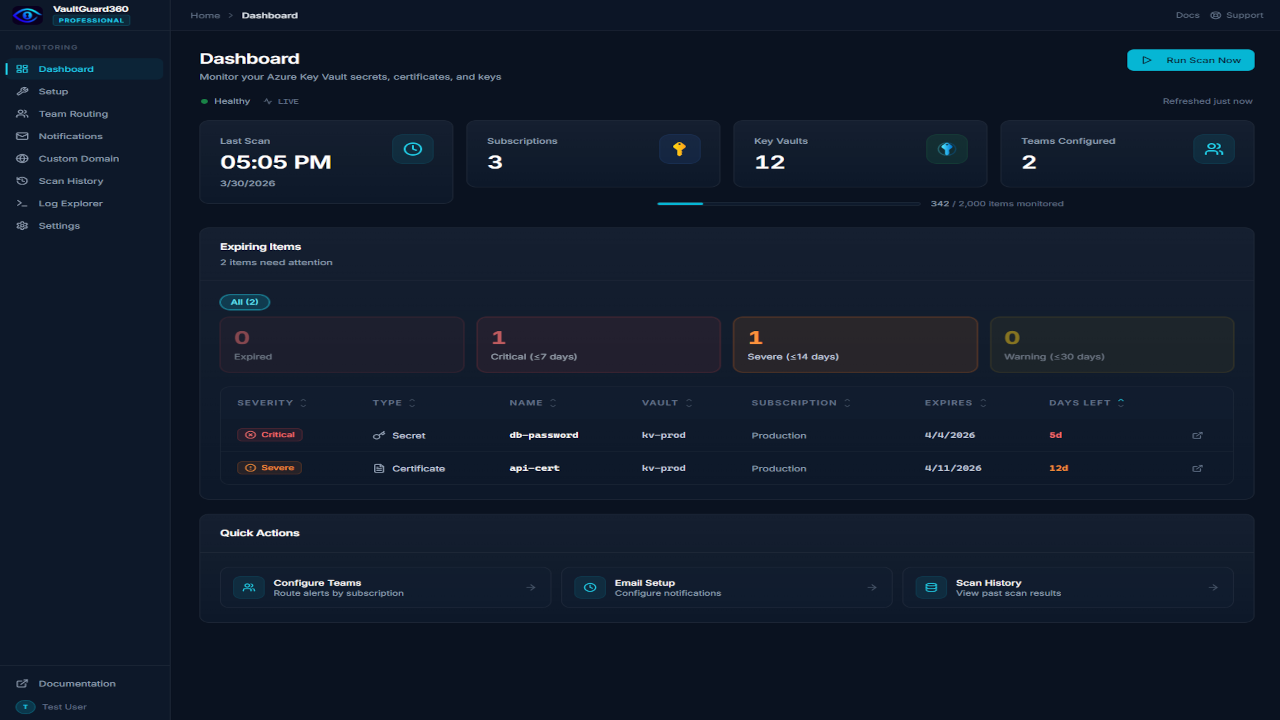
The VaultGuard360 dashboard gives you a real-time view of Key Vault item health across all your monitored Azure subscriptions.
Accessing the Dashboard
The dashboard URL is in the Outputs tab of your Marketplace deployment. It takes the form:
https://func-vaultguard360-<suffix>.azurewebsites.net
Authentication is handled automatically via Azure AD Single Sign-On. Any user in your Azure AD tenant can access the dashboard by default. Your Azure AD administrator can restrict access to specific users or groups — see Prerequisites for details.
Note: The Function App may take 20–40 seconds to respond after a restart or period of inactivity (cold start). If the dashboard shows a spinner on first load, wait a moment and refresh.
Stats Cards
The top row of the dashboard shows four summary cards:
| Card | What it shows |
|---|---|
| Total Items | All monitored secrets, certificates, and keys across all accessible subscriptions |
| Expiring Soon | Items within the Warning threshold window |
| Expiring Critical | Items within the Critical threshold window (default: 7 days or fewer) |
| Expired | Items that have already passed their expiry date |
Cards update after each scan. Click any card to filter the Expiring Items list to that severity level.
Severity Breakdown
Below the stats cards, a color-coded breakdown shows the count of items at each severity level:
- Warning (yellow) — expiring within the warning window (default: 30 days)
- Severe (orange) — expiring within the severe window (default: 14 days)
- Critical (red) — expiring within the critical window (default: 7 days)
- Expired (dark red) — past expiry date
Items that fall within multiple windows are classified at the most severe level. For example, an item expiring in 5 days is Critical, not Warning.
Expiring Items List
The main table lists all items currently within any threshold window. Each row shows:
- Item name — the secret, certificate, or key name
- Vault — the Key Vault it belongs to
- Subscription — the Azure subscription
- Type — Secret, Certificate, or Key
- Expiry date — the exact expiry timestamp
- Days remaining — days until expiry (negative for expired items)
- Severity — Warning, Severe, Critical, or Expired
Filtering and Sorting
Use the search box to filter by item name, vault name, or subscription. Click any column header to sort. The list is paginated — use the controls at the bottom to navigate pages.
Manual Scan
By default, VaultGuard360 scans on the schedule you set during deployment (visible under Dashboard > Settings). To run an immediate scan:
- Click Run Scan Now in the top right of the dashboard.
- A progress indicator appears. Scans typically complete in 10–60 seconds depending on the number of subscriptions and vaults.
- The dashboard refreshes automatically when the scan completes.
Note: There is a 60-second cooldown between manual scans to prevent excessive API calls to Azure.
Navigation
The left sidebar provides access to all dashboard sections:
| Page | Purpose |
|---|---|
| Dashboard | Main overview (this page) |
| Setup | Permission check and guided RBAC assignment |
| Settings | Alert thresholds, reminder frequency, scan schedule |
| Email Configuration | ACS email, SMTP fallback, test email |
| Notification Integrations | Teams, Slack, PagerDuty, ServiceNow, generic webhooks |
| Team Routing | Map subscriptions to teams and notification addresses |
| Custom Domain | Configure a custom email sender domain |
| Log Explorer | KQL query editor for audit logs and scan history |
| Scan History | Record of all past scans with item counts |
Troubleshooting
Dashboard shows "0 items" after a scan
The managed identity likely cannot access any subscriptions. Check Setup for missing permissions, or call /api/permission-status directly. See Key Vault Permissions.
"Trial Expired" overlay appears The 14-day trial has ended. Redeploy from the Marketplace with a paid plan. No vault data is lost — reconfiguring settings takes approximately 5–10 minutes.
Scan History shows no recent scans
If the scheduled scan is not running, verify the MONITOR_SCHEDULE app setting is a valid NCRONTAB expression (e.g., 0 0 9 * * * for 9 AM UTC daily). Check Application Insights for Function App errors.